



Canva has finally built an off switch for its AI, and we want every app to copy it
Every app we open these days seems to have a sparkly button begging us to “try AI”. Canva has been one of the keenest offenders, so it’s a genuine surprise to see it go the other way. The design platform has just launched two new AI controls that let you hide its generative tools completely and see fewer AI-made images in its library. One flick of a switch and the Magic buttons vanish.
It isn’t perfect, and Canva is upfront about where it falls short, but for a company that has spent three years stuffing AI into every corner of its editor, this is a big moment.
What Canva has actually announced
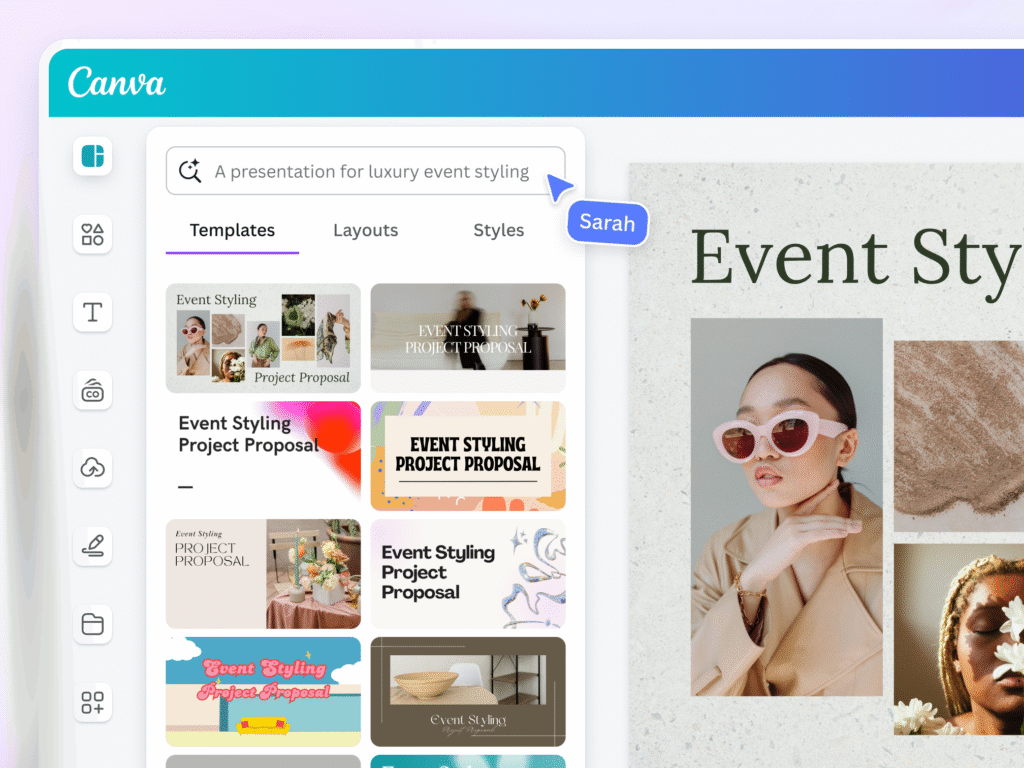
Canva announced the new controls on 19 November, and there are two of them. They’re free, available on both Canva Free and Canva Pro, and you can switch either one on or off whenever you like. The first hides Canva’s generative AI features across the whole app. The second cuts down how much AI-generated content turns up when you’re browsing templates, graphics and other elements in the library.
“It’s not our place to tell anyone how to create,” the company said. Admins on Business, Enterprise, Teams and Education accounts could already control AI for their people. Now individual Free and Pro users get the same say.
What the switch turns off, and what it leaves on
The main control lives under Profile, then Settings, then Permissions, where you’ll find a toggle labelled “Enable generative AI features”. It’s on by default. Turn it off and a long list of tools disappears from the editor, including Magic Write, Magic Design, Magic Expand, Magic Edit, Magic Layers, Dream Lab, Canva Code, AI Shapes and the image generator inside Canva’s AI chat.
Canva also says new AI features will respect the setting once they’re added, so switching off today should spare you the next shiny tool. It’s the right promise to make.
A couple of AI-powered tools stay put. Background Remover and Magic Grab remain available even with the switch off. Canva’s reasoning is that they edit content you’ve already got rather than generating anything new, so using them doesn’t add an AI-generated label to your design’s metadata. We think that’s a sensible line. Cutting a product out of a photo is very different from conjuring a fake one out of thin air.
One small catch for anyone who changes plans: the setting is tied to your account type. If you move from Free or Pro to a Teams, Enterprise or Education account (or the other way round), your choice doesn’t come with you, and you’ll need to set it again.
The library filter, and why it can’t catch everything
The second control is all about what you see rather than what you make. Head to Profile, then Your account, then AI personalisation, and you can switch on an option to show fewer AI-generated templates and elements. This one is off by default, it only affects your own account, and it won’t touch anything you’ve already added to a design.
Here’s the honest bit. Canva says it can only filter out content it knows is AI-generated, and it spots that content mainly through image metadata. Not every AI image carries a tidy digital fingerprint, so some will slip through. When users on Reddit asked why it couldn’t simply strip out every AI image, Canva’s official account explained that the library holds more than 100 million pieces of content, much of it uploaded through its Creators programme. It said it can’t legally guarantee perfect tagging at that scale, which is why the setting promises “see fewer” rather than “see none”.
We prefer that candour to a grand claim that collapses the first time someone spots a six-fingered hand in a stock photo. Canva says only a small portion of its library is AI-generated anyway, mostly abstract backgrounds and illustrated graphics.
How to turn off AI in Canva
Here’s where to look. The settings are rolling out gradually, so don’t panic if they haven’t reached you yet.
- To hide generative AI tools: open your profile, choose Settings, go to Permissions and switch off “Enable generative AI features”.
- To see less AI-generated content: open your profile, choose Your account, select AI personalisation and turn on the option to see less AI content.
- To undo either change: go back to the same place and flick the switch again. Nothing is deleted.
Canva walks through both settings on its help page for managing AI features.
Price and availability in the UK
Both controls are included at no extra cost, so there’s nothing new to pay for. Canva Free stays free, while Canva Pro costs £100 a year in the UK for one person and Canva Business is £180 per person per year. If your Permissions menu looks the same as it did last week, give the rollout a few days.
Who it’s for
The obvious winners are illustrators, photographers and designers who want their work to sit alongside other human-made work, and who are tired of wading through AI filler to find a decent template. Small business owners who care about authenticity will like it too.
It’s also handy for anyone who simply finds the AI buttons noisy. Sometimes you just want to resize a poster and get on with your day.
And if you love Canva’s AI tools? Nothing changes. Everything stays switched on unless you decide otherwise. Need a machine to run it all? Our LG Gram Pro 16 review has you covered.
Why it matters
Timing is everything here. Canva launched Craft, its first in-house image generation model, in October, and it’s now rolling generative tools into more of the platform than ever. Some users weren’t thrilled, and complaints about the library filling up with AI slop got loud quickly. Canva has built an exit.
That puts it in rare company. Most tech companies treat AI as compulsory, folding it into apps whether you asked for it or not. We’ve seen everything from ChatGPT learning to make GIFs to Meta’s AI keychain that wants to be your Tamagotchi this autumn, and very few of these launches come with an off switch. Canva has shown that a single clear toggle is entirely doable when a company actually wants to offer the choice.
It’s smart business too. With around 250 million monthly users, keeping creatives happy matters as much as AI headlines, and giving people control costs Canva very little. And for those who’d rather create everything by hand, there’s always the analogue route: our reMarkable Paper Pure review is proof that sketching on a screen can still feel gloriously human.
The TechSpy take
We love this. It’s not flawless, the library filter will miss things, and we’d like the “new features follow your setting” promise to hold up over time. But Canva has done something the rest of the industry keeps avoiding: it has trusted its users to decide for themselves.
If you’ve been quietly irritated by AI popping up in your designs, go and flick the switch. If you’re a fan, leave it on and carry on. Either way, the choice is finally yours, and we’d very much like every other app on our phones to take note.